
 By
By 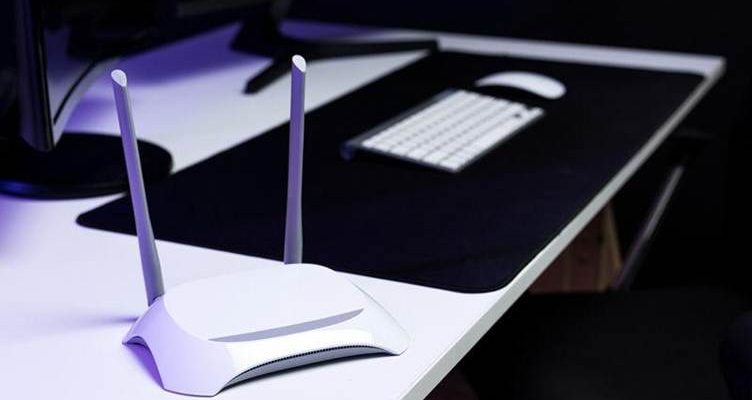
Home internet usually gets blamed when things slow down, drop out, or refuse to connect. Frustration builds quickly when work, streaming, or calls rely on stable access. In many cases, the issue starts during setup. Plugs go into the wrong ports, settings get skipped, and devices fight for attention. The setup process stays more straightforward when approached with patience and a clear order of steps, even when working with a TP-link router.
Preparation Before Any Cables Go In
Before powering anything on, take a moment to prepare the space. Clear access to the modem, power sockets, and main work surface reduces rushed decisions. Placement matters because routers perform best when signals travel without heavy obstruction. During setup, a reliable desktop computer works well, especially when adjusting browser-based settings. Using a familiar system reduces guesswork while navigating early configuration screens. Larger screens make menus easier to follow, and wired connections reduce early connectivity hiccups.
Connecting the Hardware Correctly
Start with physical connections. The modem links to the router using an Ethernet cable, while the power adaptor supplies steady current. Waiting for stable indicator lights avoids confusion later. Confirming communication between devices becomes easier when using a desktop computer connected by cable. Wired checks provide a steady reference point before wireless access enters the picture. Wired access prevents signal drops that sometimes occur during early configuration stages.
Accessing the Setup Interface
Most modern routers guide users through a web-based setup page. Typing the local address into a browser opens configuration options designed for step-by-step progress. Clear labelling and plain language tend to define the TP-link interface. Options follow a logical order, which reduces guesswork during password creation and network naming.
Creating a Stable Network Name and Password
Naming the network sounds minor, yet it shapes day-to-day use. Distinct names help household members identify the correct connection without trial and error. Passwords need length and variation, though usability still matters. Simple patterns create risk, while overly complex strings invite typing errors. A desktop computer simplifies typing complex phrases accurately, avoiding reset cycles caused by small mistakes.
Choosing Security Settings That Make Sense
Security choices appear early in the process. Modern encryption standards protect data while staying compatible with common devices. Balancing protection with accessibility comes from selecting recommended security levels on a TP-link router. Outdated protocols often cause connection issues rather than prevent them.
Managing Device Connections Gradually
Connecting every device at once increases the risk of misconfiguration. Adding phones, laptops, and smart devices gradually allows issues to surface in isolation. Each successful connection confirms stability before another device joins the network. A stable control point emerges by using desktop computers during this stage. Network changes apply cleanly while monitoring performance across new connections.
Placing the Router for Better Coverage
Signal distribution depends on position. Walls, furniture, and large appliances influence how coverage spreads. Central placement improves reach, while avoiding enclosed cabinets prevents heat build-up. Performance stays more consistent across rooms when a TP-link unit sits at desk height. Testing signal strength with a desktop computer helps highlight coverage gaps early.
Updating Firmware Without Stress
Firmware updates add refinements and address known issues. Manufacturers release updates to improve stability, compatibility, and overall performance. Applying updates during initial setup saves future interruptions. Progress bars and confirmation prompts remain visible without screen timeouts when update menus are accessed on desktop computers.
Troubleshooting Common Setup Problems
Connection failures usually trace back to cables, passwords, or device congestion. Checking physical links first saves time before adjusting settings. Restarting equipment in sequence resolves many early problems. Basic diagnostic tools that highlight connection status come built into a TP-link router. Viewing these indicators on a desktop computer simplifies interpretation.
Keeping the Network Running Smoothly
After setup, routine checks maintain stability. A short review every few months keeps settings familiar and current. Occasional reboots, password reviews, and update confirmations keep performance consistent. Network settings often rely on desktop computers acting as control hubs. Using them for periodic reviews prevents small issues from escalating.
A Practical Way to Get Connected
Router setup feels less daunting when broken into clear steps. Careful placement, patient configuration, and sensible device management reduce frustration significantly. Contact Harvey Norman to explore networking options, accessories, and advice that help the setup of a TP-link router feel organised, steady, and ready for everyday use.











Comments